

A product feed is an XML or CSV file listing your store's products — name, price, availability, image and link — that Google Merchant Center, Meta, price comparison sites and marketplaces download on a schedule. Without one, your products do not appear in Google Shopping, in dynamic ads or on comparison sites. In PrestaShop you can build a feed by hand from a CSV export, or let a module generate a file for each platform and refresh it with a CRON job. This guide explains what product feeds are for, what makes a feed good or bad, and how to generate them step by step with the PriceWars module.
What is a product feed?
A product feed (also called a product data feed, shopping feed or XML feed) is a structured list of your offers in the format a given platform understands. Every product — or every variant, such as a T-shirt in size M — is a separate item with the same set of fields:
| Field | What it holds | Example |
|---|---|---|
| ID | a stable offer identifier | 128-45 |
| Title and description | product name and short text | Nord rain jacket, navy, M |
| Price and currency | the price the customer pays | 79.00 EUR |
| Availability | in stock, backorder, out of stock | in_stock |
| Link and image | product page and photo URLs | https://…/nord-jacket.jpg |
| Brand and GTIN | manufacturer and EAN/UPC barcode | 5901234123457 |
| Category | your category or the platform's | Apparel > Jackets |
The platform fetches the file from a fixed URL, for example every few hours, and updates your listings from it. That is why a feed must always be current: if a product sells out while the file still says it is in stock, you pay for clicks that cannot convert.
What are product feeds used for?
One PrestaShop catalog can supply several sales channels at once. Each needs its own file, because they differ in format, required fields and category tree.
- Google Merchant Center — Shopping ads, Performance Max and free product listings in Google Search. Setting up the account and the first feed is covered in our guide to PrestaShop and Google Merchant Center.
- Meta catalog — dynamic ads on Facebook and Instagram that show shoppers the products they viewed in your store, and shop tabs on your profiles.
- Price comparison sites — idealo in Germany and across Europe, Heureka and Zboží.cz in Czechia, Ceneo in Poland, Skroutz in Greece, Compari.ro and Árukereső.hu, ShopMania. Shoppers compare offers from many stores and click through to the best one.
- Marketplaces and integrators — eMAG, Mirakl marketplaces (Carrefour, Decathlon, Empik), Base.com (BaseLinker) and wholesalers that take supplier offers as a file.
- Affiliate networks and AI assistants — Awin, and the OpenAI product feed used by ChatGPT.
Feeds are useful beyond selling, too: a sitemap-format file helps search engines discover every product and its language versions. See our guide to the PrestaShop XML sitemap.
Why feed quality matters
Platforms do not fix your data — they reject items that break their specification. A rejected product is simply not shown, and you often only find out from a diagnostics report in the platform's dashboard days later. The usual reasons are:
- price or availability that does not match the product page — Google compares the feed with what it sees on your site;
- missing identifiers — brand and GTIN for products that have them;
- the wrong category — platforms with their own taxonomy (Google, Heureka, Ceneo) expect your products mapped to it;
- forbidden characters or HTML in descriptions, titles that are too long, missing images.
Regulations add their own requirements. In the EU, a price reduction must show the lowest price of the 30 days before it (the Omnibus directive), and the General Product Safety Regulation (GPSR) requires manufacturer details — plus a responsible person in the EU when the manufacturer is outside it — which some platforms now ask for in the feed. A good feed is therefore not just a product export: it is a file that follows each platform's specification and carries the same prices your customers see.
How to generate a product feed in PrestaShop
PrestaShop has no built-in feed generator for comparison sites and ad platforms. You have three options:
- A CSV export from the back office (Catalog → Products → Export) reworked in a spreadsheet. Fine for a few dozen products and one channel, but you update the file by hand and work out discounted prices and variants yourself.
- A separate module per platform — one for Google, one for Meta, one for each comparison site. Each has its own settings, category mapping and cron job, which adds up quickly.
- One module for every feed — shared filters, price rules and category mapping, with a file in each platform's own format.
The third option is what our PriceWars - Product Feeds module does: you create as many feeds as you need — for Google, Meta, idealo, Heureka and more than 20 other platforms and formats — each with its own language, currency, country, products and prices.
Generating feeds with PriceWars step by step
The module runs on PrestaShop 1.7.8, 8 and 9 (PHP 7.2.5 or later), multistore included. After installation it lives under Catalog → PriceWars. It calculates prices, stock and shipping costs with PrestaShop's own functions, so the file carries exactly what your customers see — with your taxes, specific prices and group discounts.
Step 1. Add a feed and choose the platform
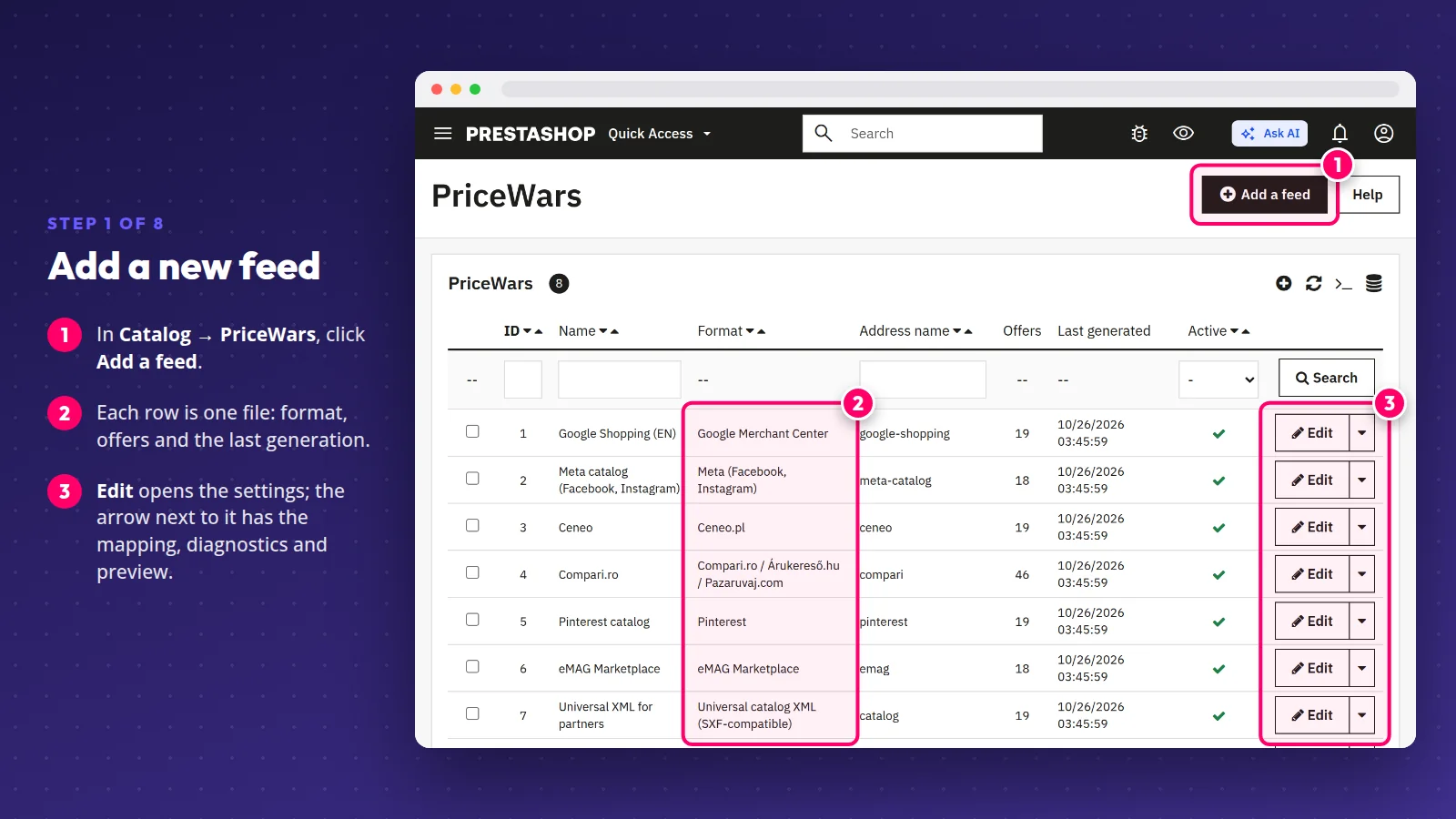
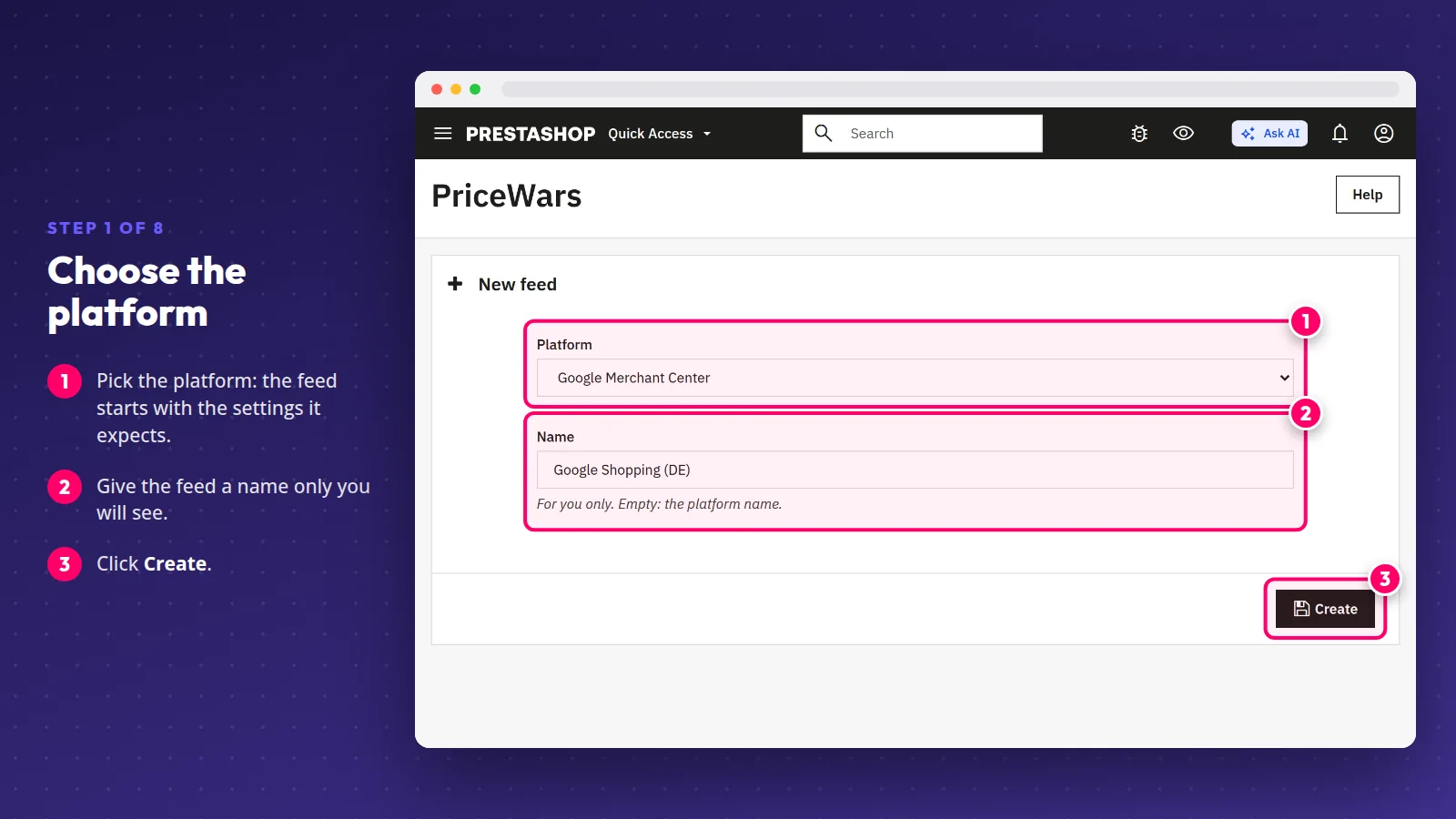
Click Add a feed and pick the platform. A new feed starts with the settings that platform expects. The list shows every feed of the store with its format, number of offers and the date of the last file; the row actions open category mapping, diagnostics, preview and generation.
Step 2. Set the address and how the file is built
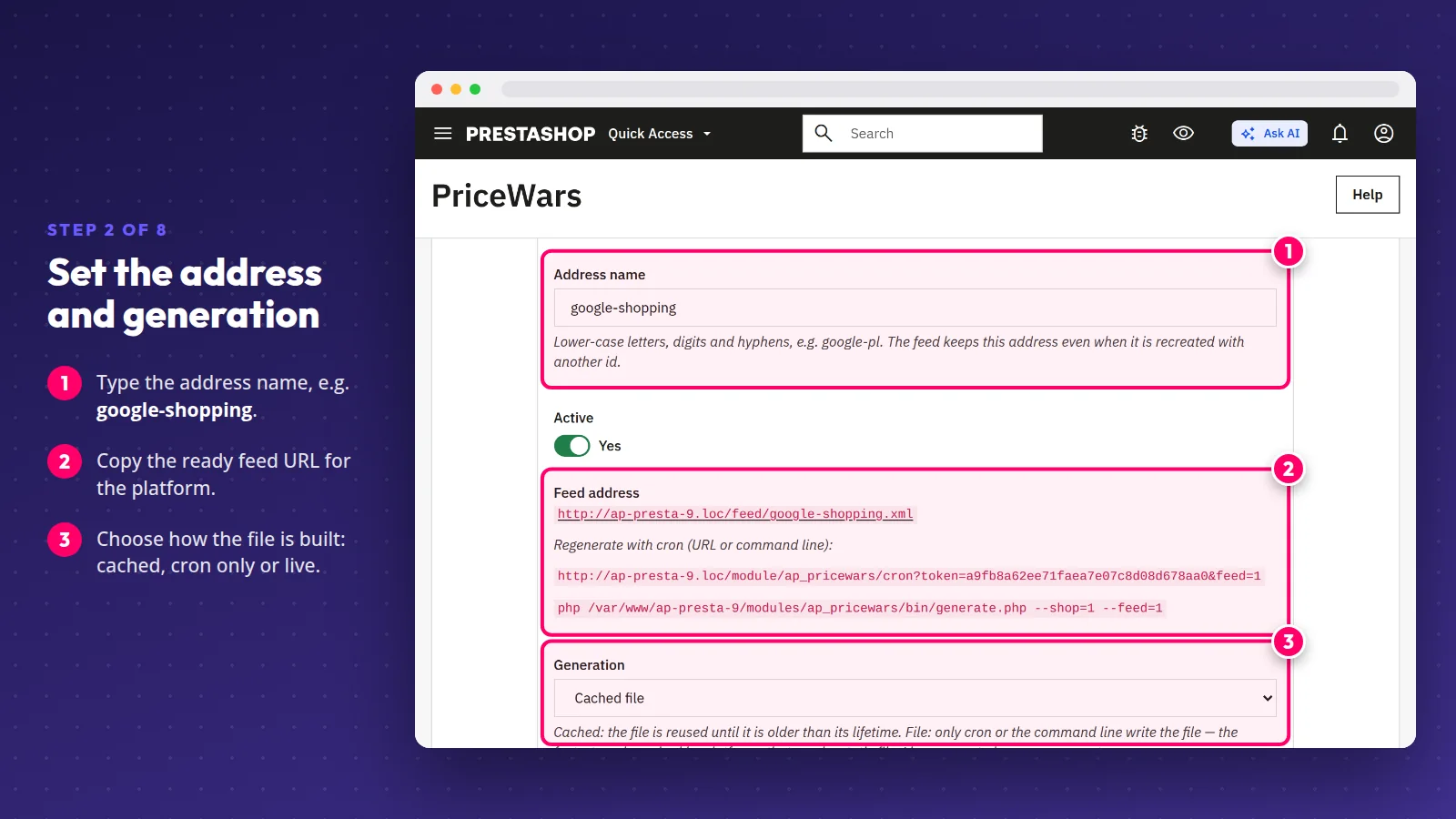
On the General tab you give the feed a name for its address, such as google-shopping, so the file has a short, fixed URL to paste into the platform. Under Generation you choose a cached file refreshed by cron, a file written only by cron, or live generation on every download. A feed can also require a key if it should stay private.
Step 3. Language, currency and market
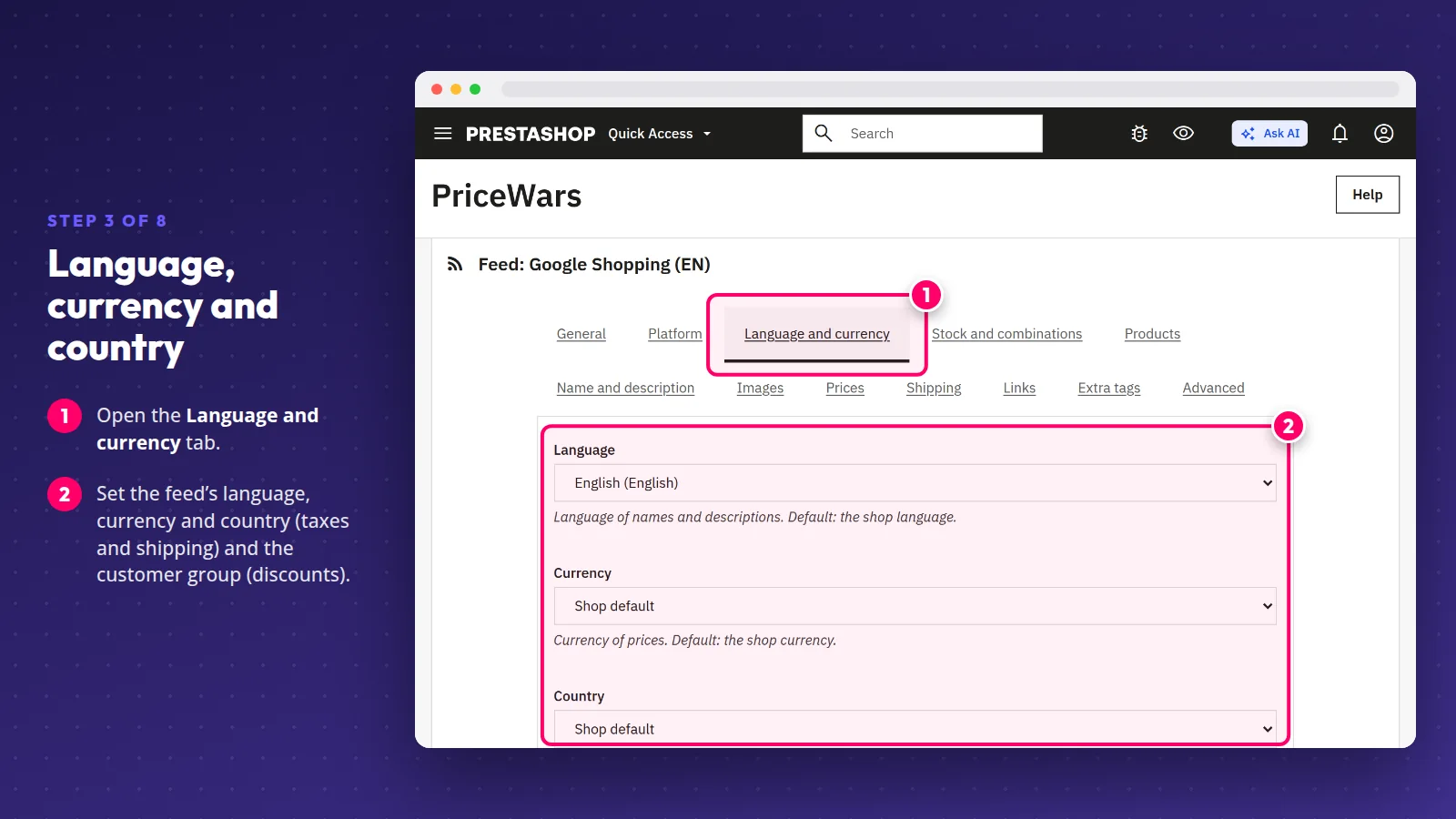
Each feed has its own language, currency, country (for taxes and shipping) and customer group (for discounts). Selling in Germany and Czechia? Create an idealo feed in euros and a Heureka feed in koruna from the same catalog.
Step 4. Choose the products and variants
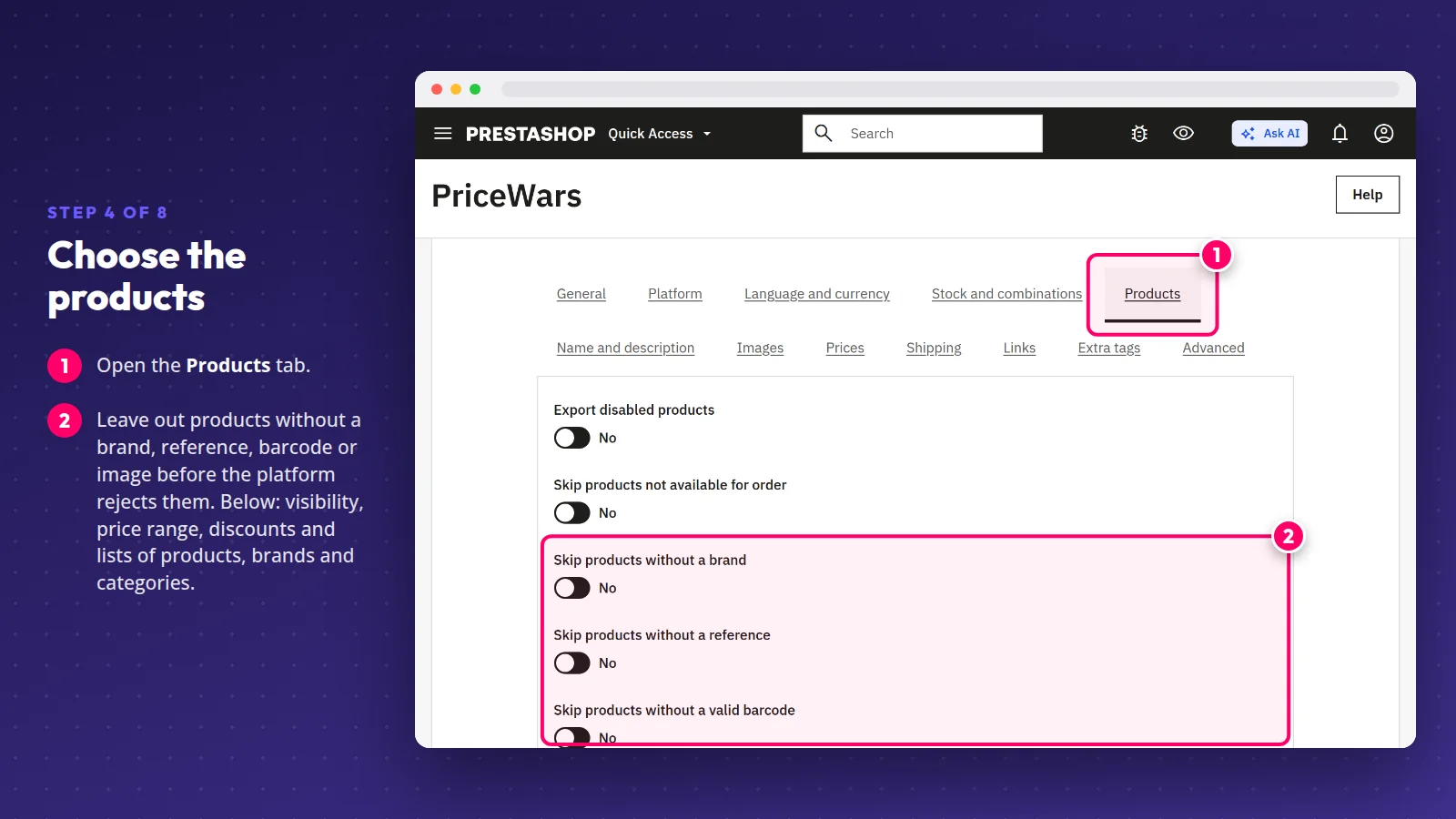
Filters decide what goes into the file: categories, brands, suppliers, price range, discounted products, stock, visibility or your own product list. You can leave out products without a brand, barcode or image before the platform rejects them. Combinations go out as separate offers — each with its own name, codes and image — or as one product.
Step 5. Titles, descriptions and prices
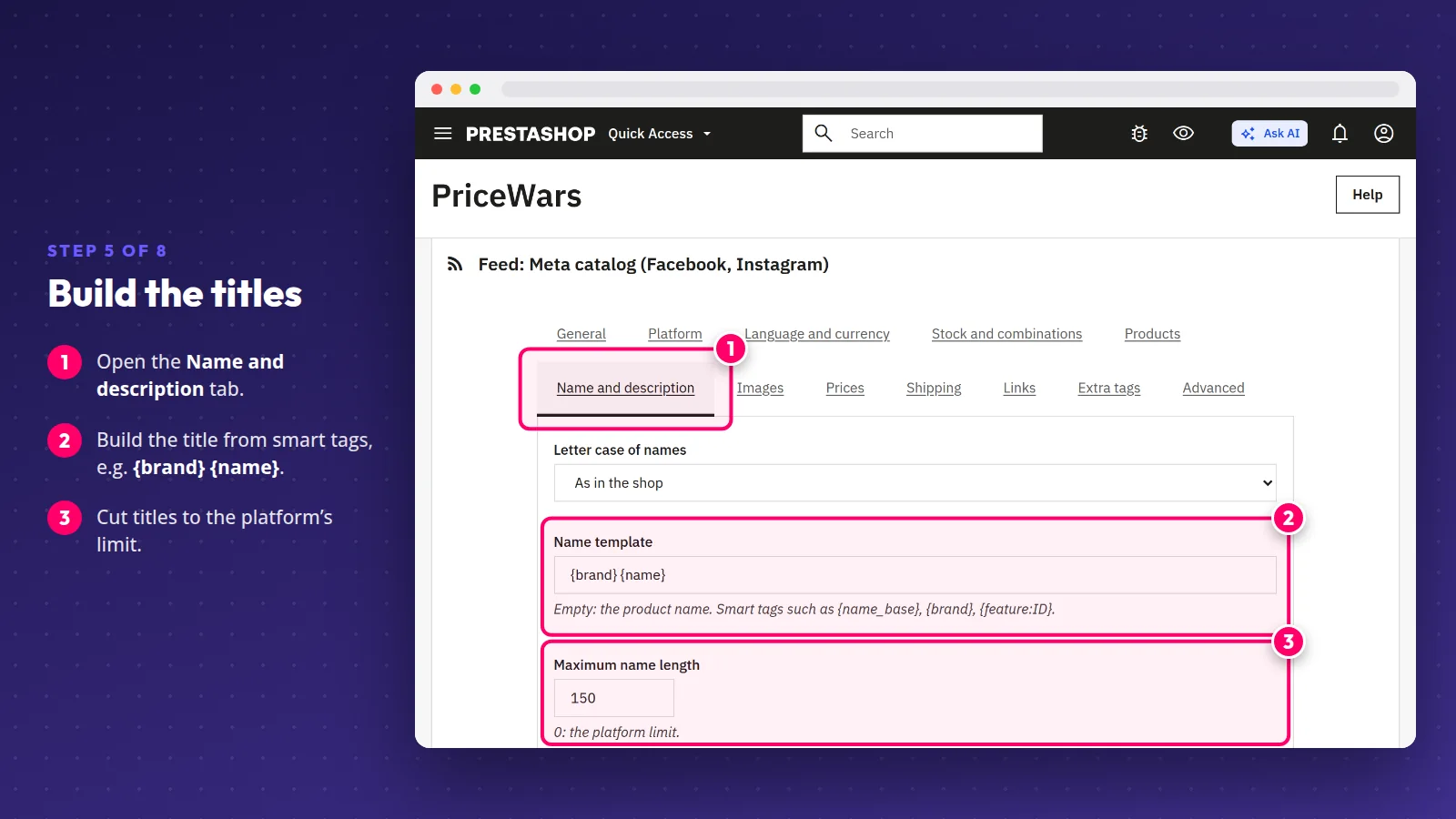
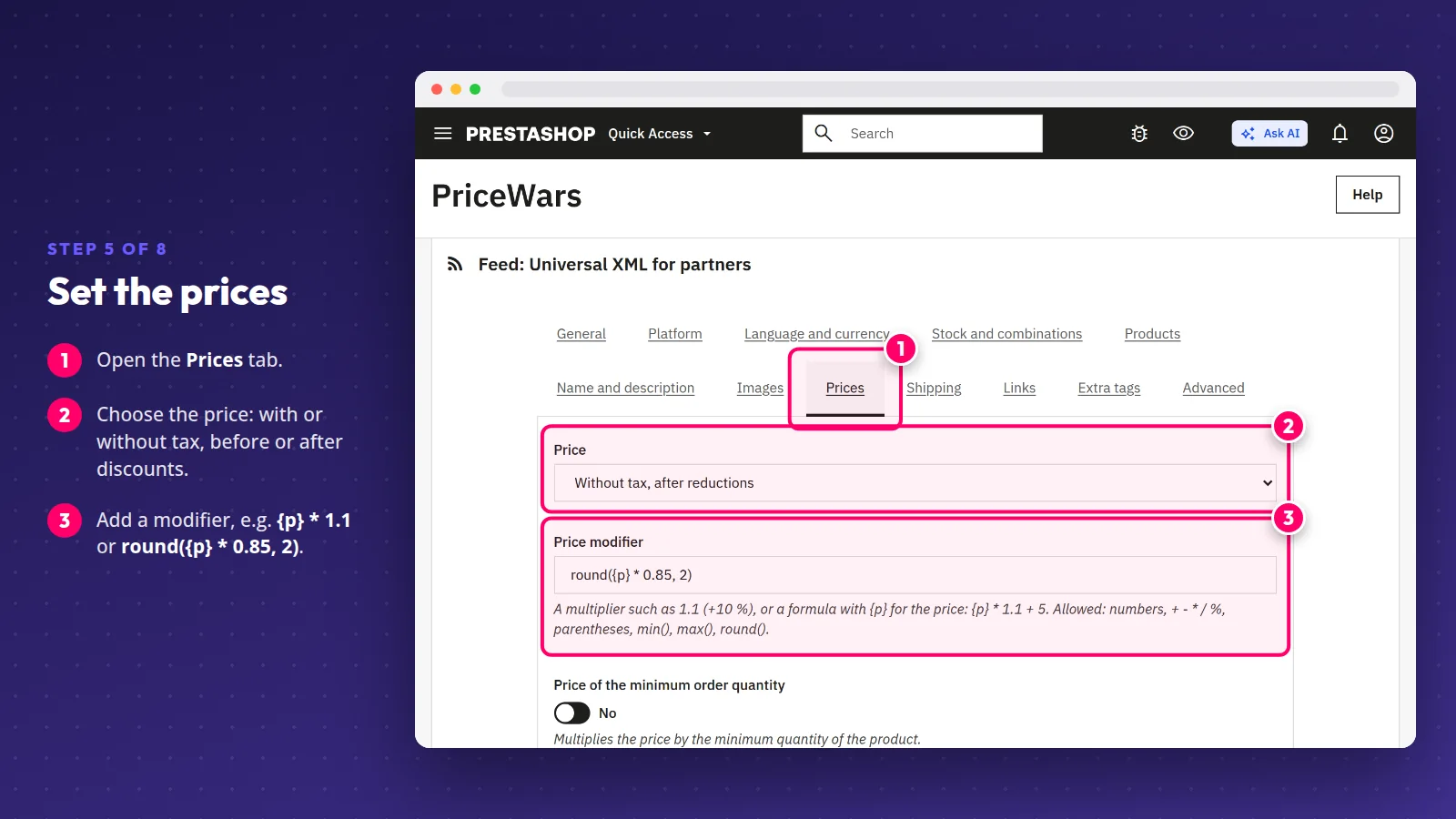
Build offer titles from a template with smart tags such as {brand} {name_base} {feature:5}: brand, name and a chosen feature make a title that matches searches better than the bare product name. Price rules let you send the price with or without tax, before or after discounts, apply a formula (for example {p} * 1.1 + 5) and add the lowest price of the last 30 days for the platforms that require it.
Step 6. Map your categories
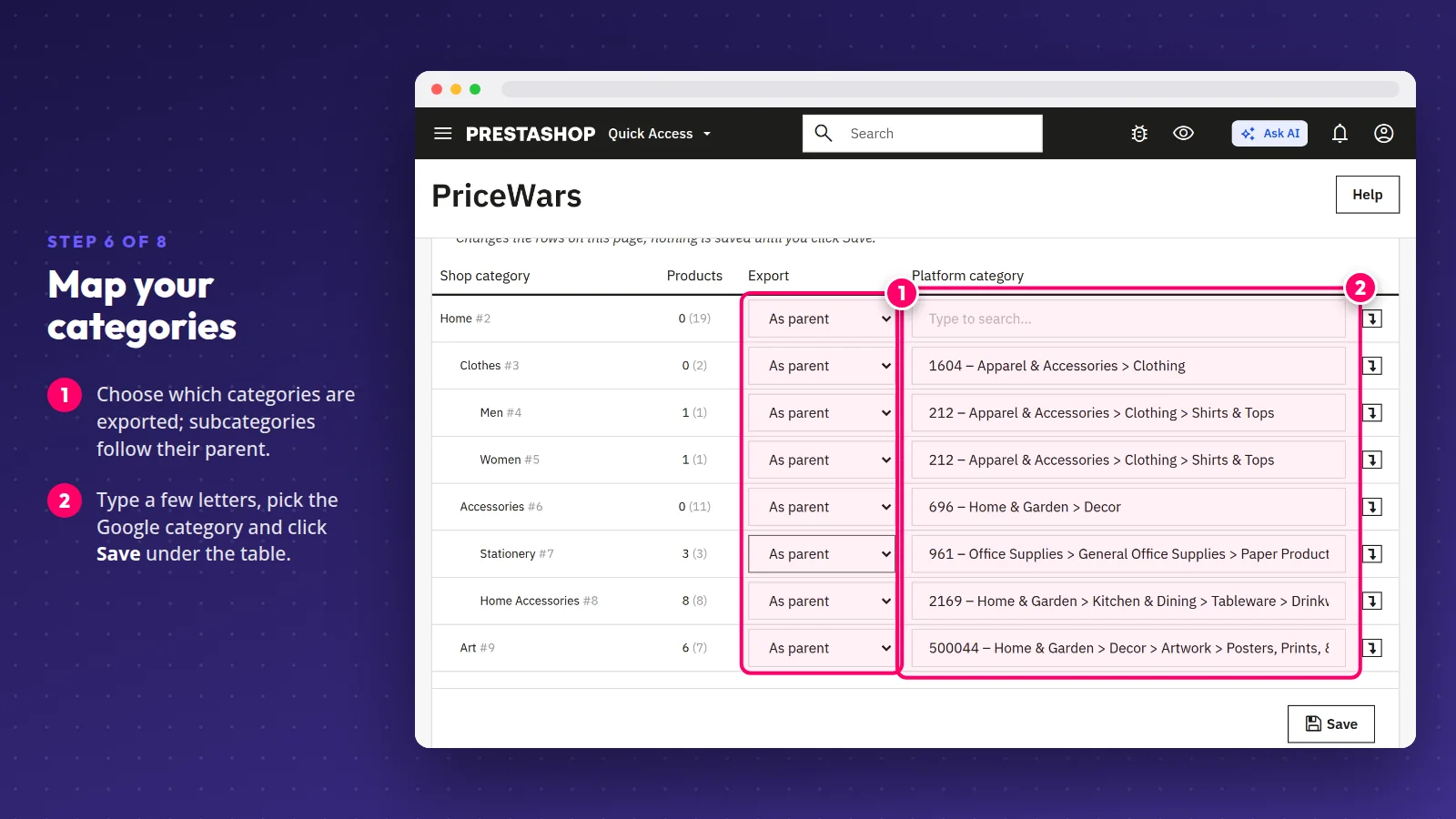
In Category mapping you choose which store categories are exported and, for platforms with their own tree, the matching Google, Heureka, Zboží.cz, Ceneo or I-SZOP category — type a few letters and pick from the list. Subcategories inherit the choice of their parent, so mapping a top category covers its whole branch. You can copy a mapping from another feed or edit it in a spreadsheet with CSV export and import.
Step 7. Check the preview and diagnostics
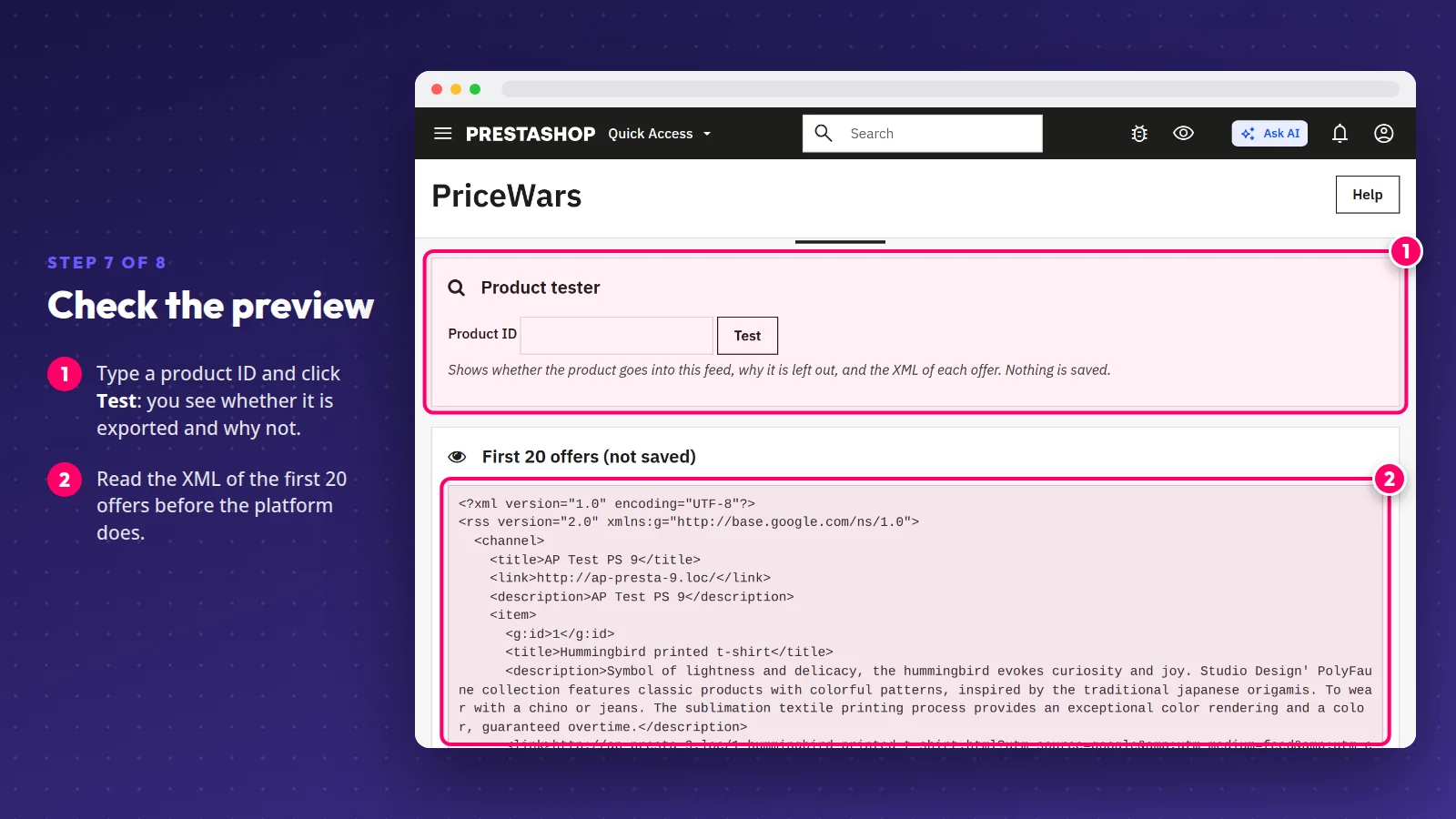
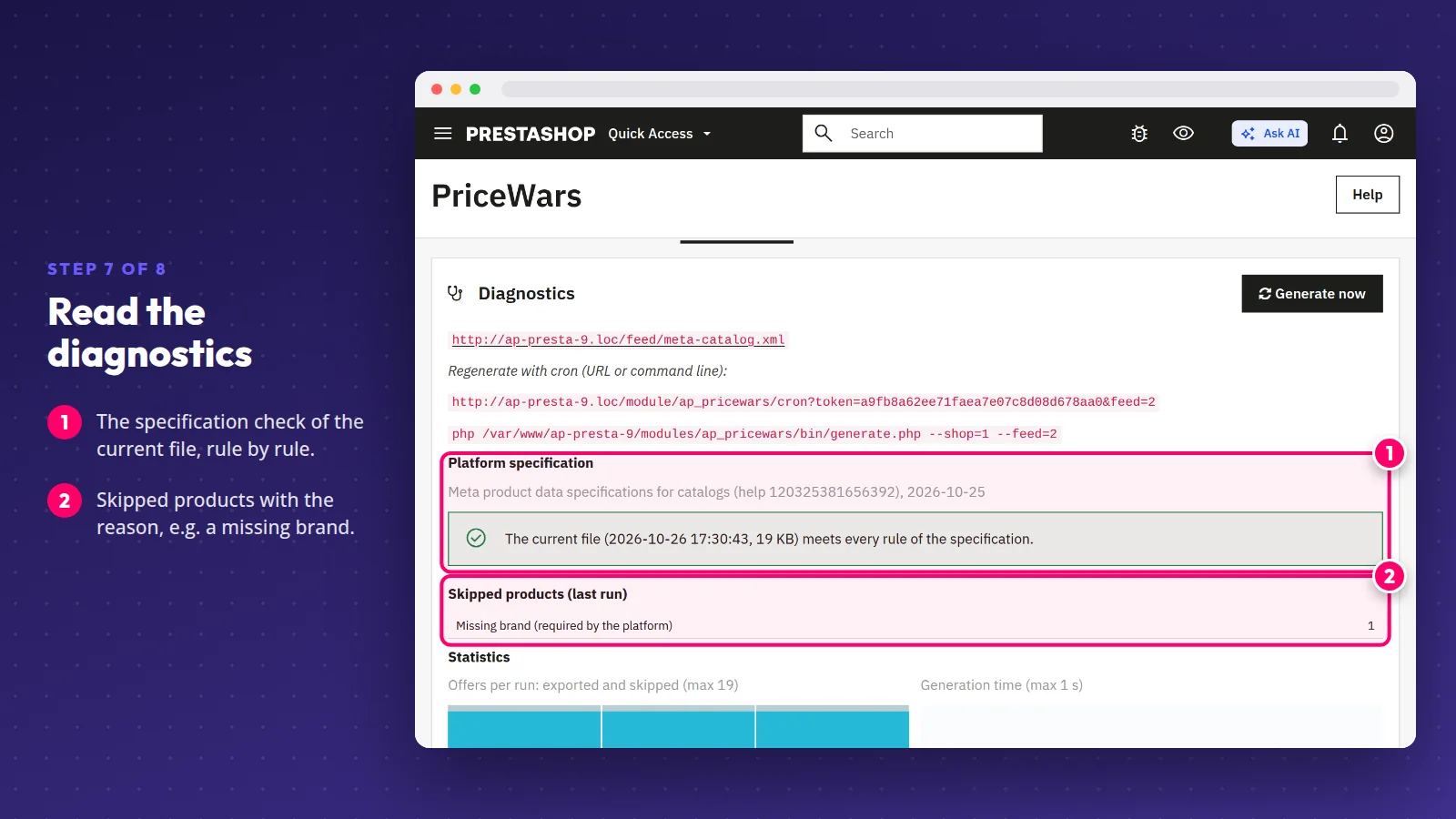
Before you paste the URL into a platform, open the Preview: it shows the XML of the first 20 offers, and the product tester tells you whether a product makes it into the file and, if not, why (for example "Out of stock", or a missing brand the platform requires). Diagnostics checks the generated file against the platform's specification, lists every broken rule with the offer it concerns, and shows the skipped products with their reason.
Step 8. Schedule the cron job and add the URL
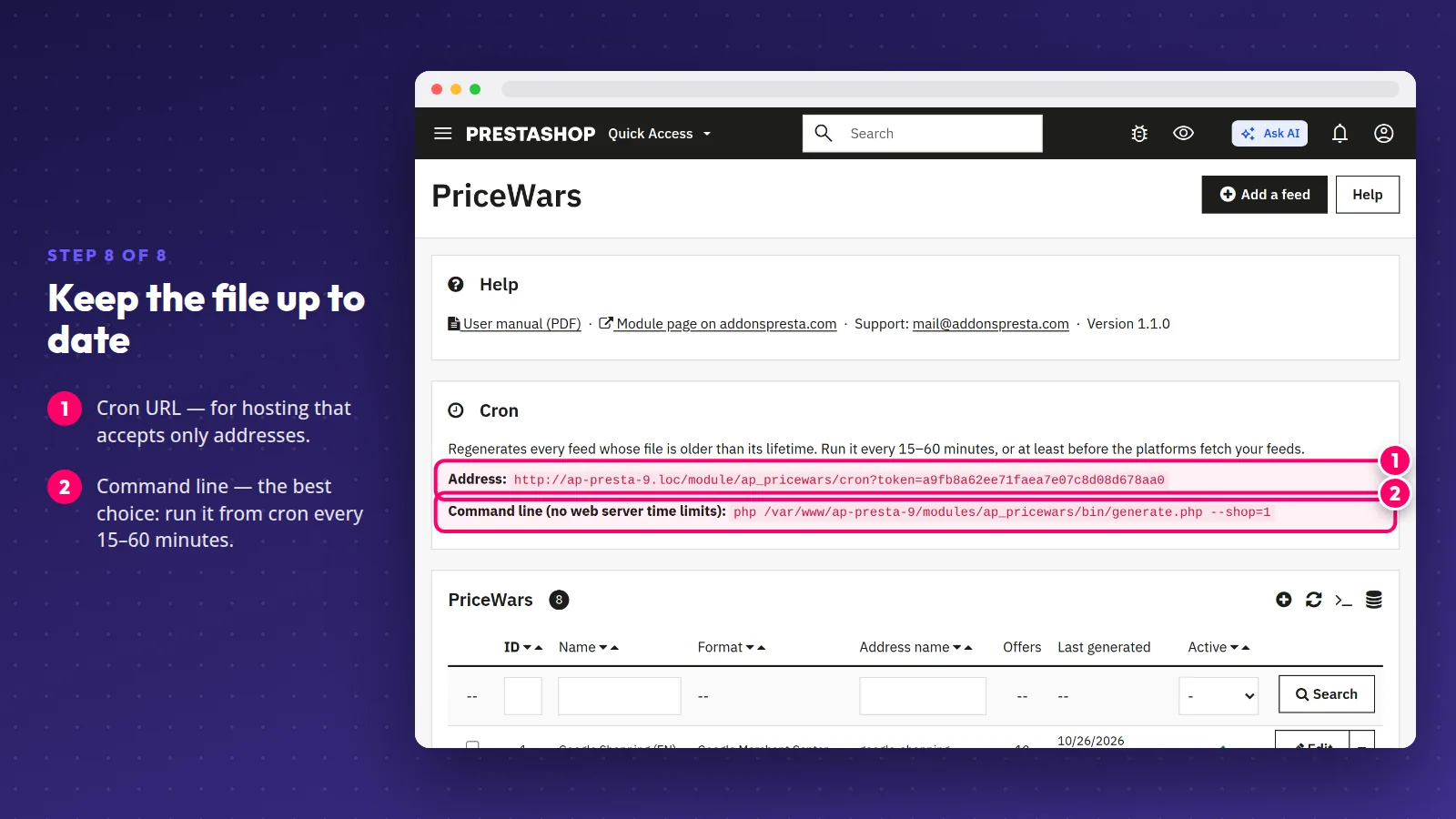
Copy the feed URL from the list and paste it into Merchant Center, Meta Commerce Manager or the comparison site's dashboard. To keep the file current, run a cron job every 15–60 minutes, preferably from the command line: php /path/to/shop/modules/ap_pricewars/bin/generate.php --shop=1. If your hosting only accepts URLs, use the cron URL shown under the feed list.
Tip: never change offer IDs in a live feed. Platforms recognise your products by them — new IDs make them new items, and you lose the performance history of your ads.
Common product feed mistakes
- Refreshing the file once a day while stock changes by the hour. With fast-moving stock, run cron more often and skip unavailable products.
- Prices without tax in a consumer feed. Google and comparison sites expect the price the shopper pays; check the feed's country and customer group.
- One file for every market. Different languages and currencies need separate feeds, or the platform rejects offers or shows the wrong price.
- No category mapping. A product in the wrong category lands in the wrong results or gets disapproved.
- No check after catalog changes. After a product import, look at the diagnostics before the platform reports errors.
A well-built feed runs on its own: platforms fetch an up-to-date file while you work on your offer, not on exports. If you already use SEIGI PriceWars II, PriceWars imports its feeds, settings and category mappings.
Frequently asked questions
What is the difference between an XML and a CSV feed?
They are two formats for the same list of offers. Most platforms (Google, Heureka, Ceneo) take XML, some — idealo or Awin, for example — take CSV. The platform decides the format, not the store; the module writes each file in the format its platform requires.
How often should a product feed be updated?
As often as your prices and stock change. For most stores a cron job every 15–60 minutes is enough, and each platform fetches the file on its own schedule — in Merchant Center you set it when you add the feed.
Can one module handle Google, Meta and comparison sites?
Yes. In PriceWars every feed is a separate file in its platform's format, with its own category mapping, filters and prices, and you manage them all from one list in the PrestaShop back office.
Why does Google disapprove products from my feed?
Usually because of a price or availability mismatch, a missing brand or GTIN, the wrong category or a blocked image. The module's diagnostics check the file against the rules of Google's specification and point to the faulty offers before Merchant Center does.
Does a product feed slow down my server?
Generating a large catalog takes some work at each refresh. The module reads products in batches, writes a finished file and serves it to platforms from cache, so a download does not rebuild the catalog every time.
Want your products on Google, Facebook and comparison sites without manual exports? Take a look at PriceWars - Product Feeds, or contact us with a question about your store.
Products in this article
